Classic Win 10 Right-Click Menu
(vs the short, new one
that doesn't show anything)
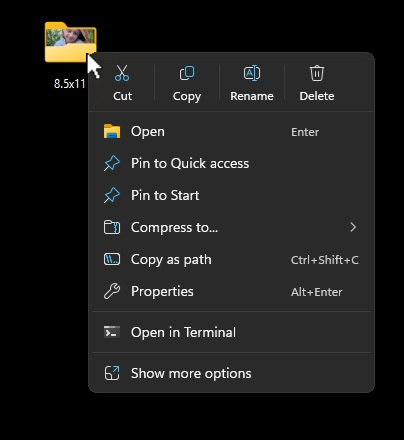
I guess the folks at Microsoft wanted the menu to be simpler, neater, better-looking? I'll admit, it does look nice... until you want to do anything.
I want to see all my options. I want software I added to the machine to be able to show up in the menu. -- I want to get things done.
I found it awkward at first. I tried to get used to it. I put up with it for years now. So I said Forget this, it's just a PITA. I went old school on it.
Here is what the NEW menu looks like on my machine:
And below is what the Classic Menu looks like:
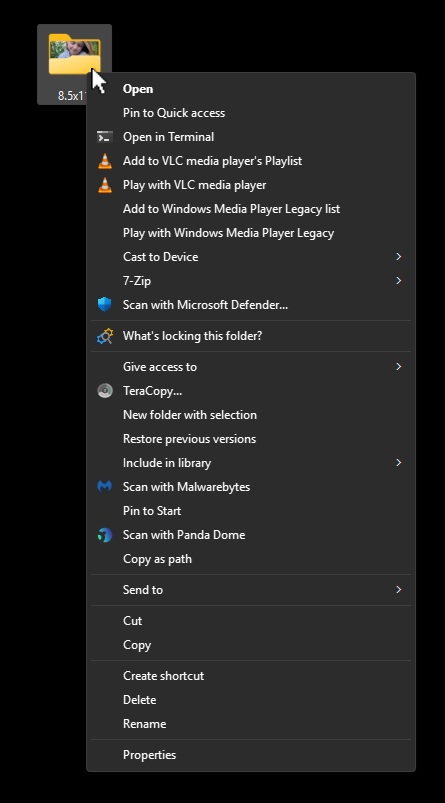
By default, for the "Owner" account on machines I install, I started putting in the classic menu. If you want the NEW menu, look in the Registry Files folder and double-click on the Right-Click Menu NEW reg file.
Click YES/OK when you see the Allow Prompts. You need to reboot machine or restart File Explorer to see the changes.
To get the CLASSIC menu, double-click on the Right-Click Menu Classic reg file.
Click YES/OK when you see the Allow Prompts. You need to reboot machine or restart File Explorer to see the changes.
The Registry Files foleder is on the OWNER desktop, under Maintenance > Tips > Reristry Files
You can also download:
Right-Click Menu Classic
Right-Click Menu NEW